
Epitomax® Behavioral Health Software:
ICD-10 Diagnosis Enhancements – Final Release – Existing Customers
Epitomax® 9.0
Last Revised – August 13,
2015
Copyright © 2015 PsyTech Solutions Inc. Intended solely for use by PsyTech Solutions personnel, dealers, and customers. Note that the information in this document is subject to change without notice. Any unauthorized use, reproduction, or distribution of this material is strictly prohibited and punishable by law.
Contents
Adding, Editing, and
Deleting a Client Diagnosis
Redesigned Admission
Diagnosis Screen
ICD-10 Admission
Diagnosis Screen
ICD-9 / DSM-IV Diagnosis
Screen (With link to ICD-10 Admission Diagnosis Screen)
Defaulting Admission
Diagnosis
Adding, Editing, and
Deleting an Admission Diagnosis
Converting from ICD-9 to
ICD-10
Staff Calendar Diagnosis
Indicators
Overview
PsyTech Solutions is excited to announce the inclusion of the ICD-10 diagnosis coding system into Epitomax©. Not only have we introduced the new coding system, but we have completely redesigned how diagnosis coding is done in Epitomax©. We have included a completely new patient diagnosis screen, as well as a number of other new features that make diagnosis coding of admissions faster, easier, and more accurate. There now are multiple workflows that you can choose from for coding your admissions, so you can choose the best fit for your practice. We have upgraded from the DSM-IV axis system to DSM-5. We have also included a conversion screen using the Centers for Medicare & Medicaid Services (CMS) and the Centers for Disease Control and Prevention (CDC) published ICD-9 to ICD-10 General Equivalence Mappings (GEMs) to help you and your staff migrate your diagnoses to ICD-10. (For more information on GEMs, please visit http://www.cms.gov/Medicare/Coding/ICD10/downloads/GEMs-CrosswalksBasicFAQ.pdf.) To ensure a successful transition to ICD-10, you not only need an EMR that implements ICD-10 (which you can now check off your list), but you will also want to provide training for your staff on the ICD-10 coding system. The GEMs are not a one to one mapping and your staff will need to become proficient in ICD-10 coding.
As you probably already know, ICD-10 diagnosis coding will be required for claiming services rendered on or after 10/1/15. Any service occurring prior to this date must be claimed using ICD-9 diagnosis coding, regardless of when the claim is submitted. Some implications of this transition are:
1. Claims of services rendered prior to 10/1/15 (including rebills) will still be claimed using ICD-9 codes, even if the claim is generated after 10/1/15.
2. Any admission that receives services before and after 10/1/15 will need to be dual coded in both ICD-9 and ICD-10 so that the correct diagnosis codes can be claimed.
3. ICD-10 coding of your admissions must begin and be completed prior to 10/1/15 to avoid a disruption in cash flow.
Epitomax© will handle claiming the correct coding system based on service date, and your staff will be responsible for coding clients in the correct code system.
We are excited to be partnering with you through this transition from ICD-9 to ICD-10. Please feel free to reach out to us when you have questions.
New Client Diagnosis Screen
To better facilitate the treatment of a client across multiple admissions, Epitomax© now contains a new diagnosis screen on the client record. This is in addition to the diagnosis screen on the admission record. We designed both the Client Diagnosis and Admission Diagnosis interfaces to interact with each other behind the scenes. Our goal is to offer the rich features made possible by a Client Diagnosis screen, without requiring staff to enter data in 2 places.
Client Diagnosis Screen
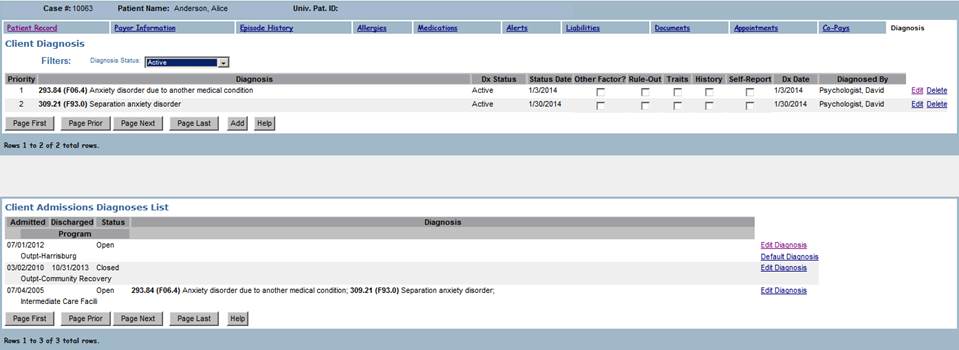
There is a new tab in the client record labeled “Diagnosis” and it shows the diagnosis list for a client as well as a summary view of the diagnosis from all admissions, past and current. From the Client Diagnosis listing you can add, edit, and delete diagnosis entries for this client. From the Admission Diagnosis List, you can use the “Edit Diagnosis” link to open the admission diagnosis screen. If no diagnosis has been entered yet, you can use the “Default Diagnosis” link to default the admission diagnosis from the diagnosis information that has been entered for the patient. Keeping the Patient Diagnosis up to date coupled with the default diagnosis feature can streamline coding new admissions.
Adding, Editing, and Deleting a Client Diagnosis
You can use the “Add” button to add a new diagnosis, or use the “Edit” link to modify an existing diagnosis. Note that once a diagnosis has been entered, the ICD-10 code cannot be changed. This is to help prevent coding errors as diagnoses are resolved over time. If a diagnosis has been treated and is resolved, the “Diagnosis Status” should be updated to “Resolved”, and any new diagnoses should be entered on new rows. If the incorrect ICD-10 diagnosis code was added, change the “Diagnosis Status” to “Incorrect Entry” and add a new row for the correct ICD-10 code.

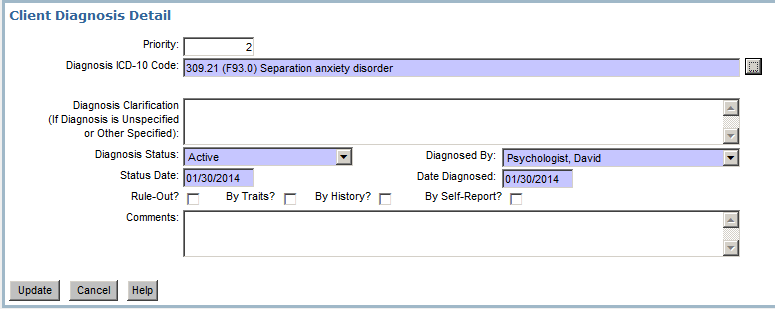
Description of Fields:
- Priority – priority order of Dx codes, only priority 1 typically goes on the billing (unless claims are configured to bill secondary diagnoses)
- Diagnosis ICD-10 Code – Dx code. The format of these codes matches the DSM-5 format – “ICD-9_code (ICD-10_code) description”. Not all codes will include an ICD-9 code in their description. You can search for the diagnosis you are looking for in the same manner you can search within other picklists in Epitomax. If you want to search in the middle of the description instead of the beginning, use a percent sign (%). (So searching on “%anxiety” will find all the diagnoses with the word “anxiety” in them. Searching on “309” will find all diagnoses that begin with the numbers 309.)
- Diagnosis Clarification – free text to further clarify Dx, such as why it is unspecified
- Diagnosis Status
- Active – can be on billing
- Inactive
- Incorrect Entry
- Resolved
- Diagnosed By – person reporting or giving Dx. This is defaulted to the logged in user.
- Status Date – date the status was given/changed for the Dx
- Date Diagnosed – date the Dx was given
- Rule Out – a Dx they are trying to decide on or unsure on
- By Traits – there are observable behaviors you can see, but it may not quite meet the Dx
- By History – patient reports a prior Dx from someone else
- By Self-Report – patient states they “are depressed”, etc.
- Educational Resources Provided – check the box if resources were provided
- Comments – free text to use as desired
Redesigned Admission Diagnosis Screen
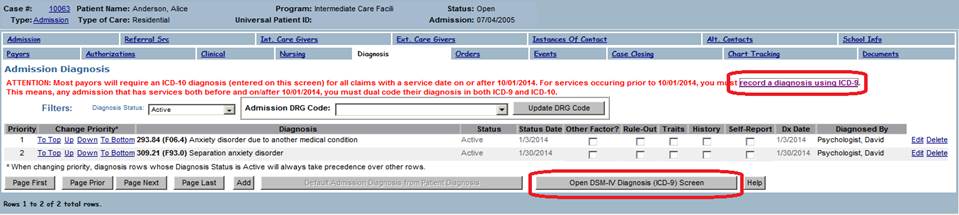
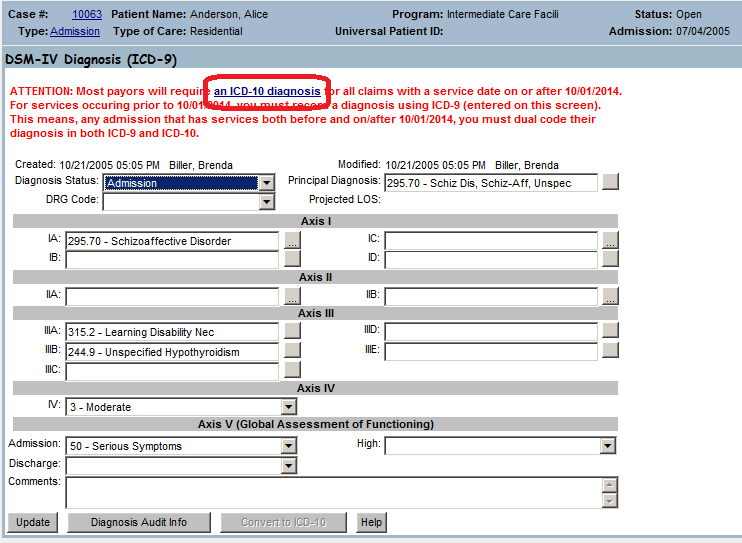
The ICD-9 / DSM-IV diagnosis tab will be replaced by a new ICD-10 Admission Diagnosis screen. The old screen can be accessed from a link at the top of the ICD-10 Admission Diagnosis screen, as well as by clicking a button near the bottom of the screen. From now until 10/1/15, when you click the “Diagnosis” tab on the admission record, you will be taken to the old ICD-9 / DSM-IV Diagnosis Screen. We hope leaving the ICD-9 screen as the default screen for this tab will be helpful to staff. Once on the old ICD-9 screen, there is a link at the top of the page to open the new ICD-10 Admission Diagnosis screen. Beginning 10/1/15, the new ICD-10 Admission Diagnosis screen will become the default screen for the diagnosis tab.
Please note that claims pull diagnosis codes from the diagnosis on the admission, not on the client. This allows you to claim different diagnosis codes on different admissions. You must have an admission diagnosis (not just a client diagnosis) in order to claim services.
The admission diagnosis is only billable if:
1. Status is Active.
2. ICD-10 code is not an “other factor” (all of these begin with the letter “Z”, for example (Z12.6) Encounter for screening for malignant neoplasm of bladder).
3. ICD-10 code is not a “header row”. These are not included in Epitomax by default.
4. None of rule-out, traits, by history, and by self-report are checked.
5. Only the first billable diagnosis will be included on the claim (as determined by priority order and the rules above), unless your claims are configured to include secondary diagnoses.
ICD-10 Admission Diagnosis Screen
ICD-9 / DSM-IV Diagnosis Screen (With link to ICD-10 Admission Diagnosis Screen)
Defaulting Admission Diagnosis
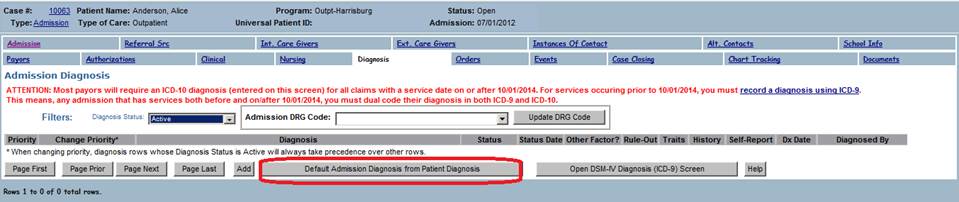
In addition to being able to default an Admission Diagnosis from the Admission List on the Client Diagnosis Screen, there is a button to do this on the Admission Diagnosis screen. This button is only available when there are no Admission Diagnosis rows.
Also, any new admission you open will have its diagnosis automatically defaulted from the diagnosis entered on the client. This feature is configurable, contact PsyTech Solutions if you wish to turn this feature off.
We are excited about this default feature, particularly in regards to how it can help streamline coding workflow when staff keep the Client Diagnosis up to date.
Adding, Editing, and Deleting an Admission Diagnosis
There are a few ways to add a diagnosis to an admission. We created these different ways to make this Admission Diagnosis screen as practical as possible. Our goal was to create the Admission Diagnosis screen flexible so that staff can ignore the Client Diagnosis screen if they so choose.
Adding an Existing Client Diagnosis to an Admission
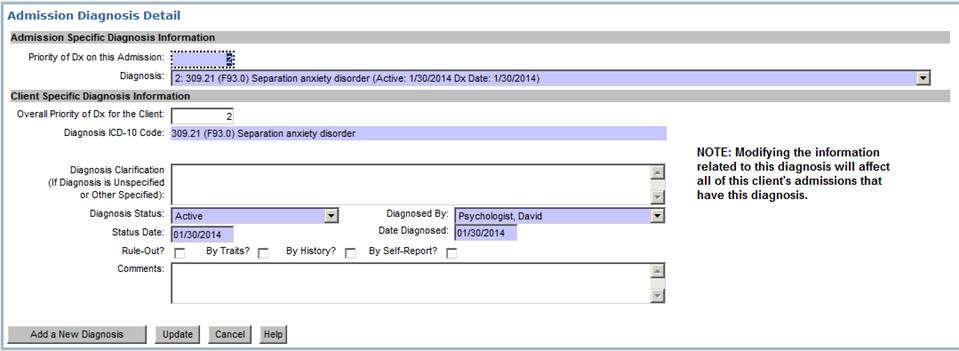
To add an existing Client Diagnosis, click the “Add” button on the Admission Diagnosis screen. Then enter a priority for the diagnosis, and select an existing diagnosis row from the Client Diagnosis.


Once you select a Client Diagnosis row, the screen changes and you can make changes to the client diagnosis that you chose. Keep in mind that making changes here will change the Client Diagnosis. To prevent coding errors, the ICD-10 Diagnosis Code is read only. Click the “Update” button to save your changes.
Adding a New Diagnosis to an Admission
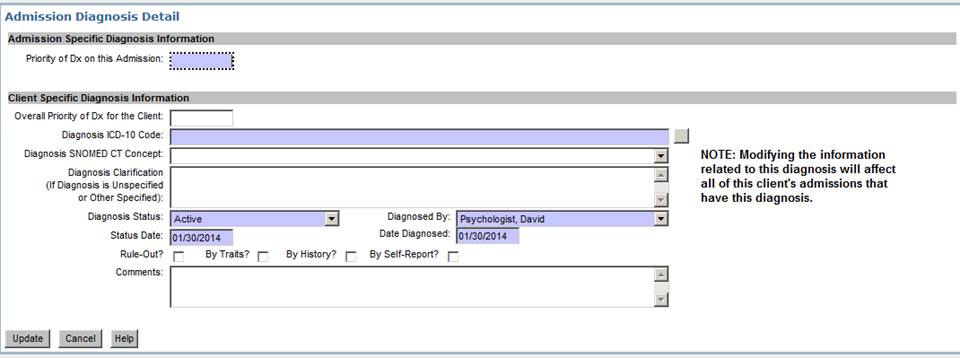
To add an entirely new Diagnosis, click the “Add a New Diagnosis” button.

The screen will change and you will have access to all the fields to enter a new diagnosis. When you add a diagnosis in this manner, it will save a row to the Client Diagnosis as well as a row to the Admission Diagnosis. Click the “Update” button to save your changes.
Diagnosis Priority
The priority order of the Admission Diagnosis list determines the order diagnosis codes will be listed on a claim. As you know, this has implications on how you are paid for the services you provide. It is important that staff understand that this priority order is used for billing and should be ordered in a manner to maximize payments.
The priority will always start with 1, will not be duplicated, and will not skip numbers. This is handled behind the scenes for you. (So if you enter a duplicate, skip a number, or delete a diagnosis from the middle of the list, the list will be reordered for you.)
There are 2 ways to change the priority of the diagnoses on an admission.
Changing Priority by Editing the Admission Diagnosis
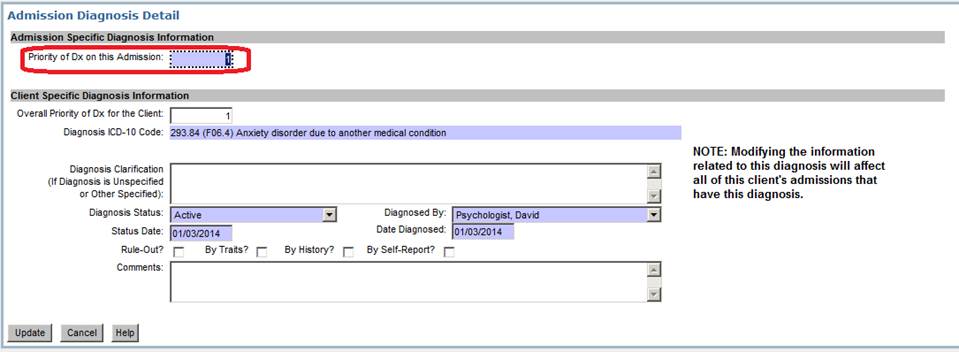
You can change the priority number by using the “Edit” link for an Admission Diagnosis row.
Changing Priority Using the “Change Priority” Links
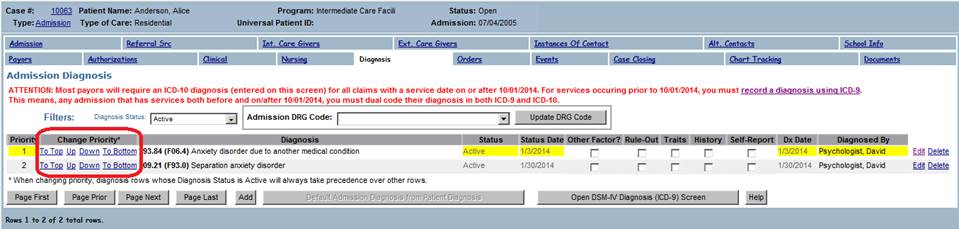
You can also change the priority order by using the “To Top”, “Up”, “Down”, and “To Bottom” links on the Admission Diagnosis list.
DRG Coding
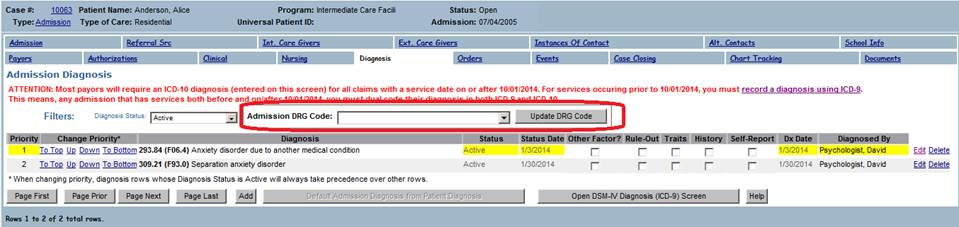
You can also set a DRG (Diagnosis-Related Group) code for the admission. Select a code from the “Admission DRG Code” drop down, and click the “Update DRG Code” button.
Closing an Admission
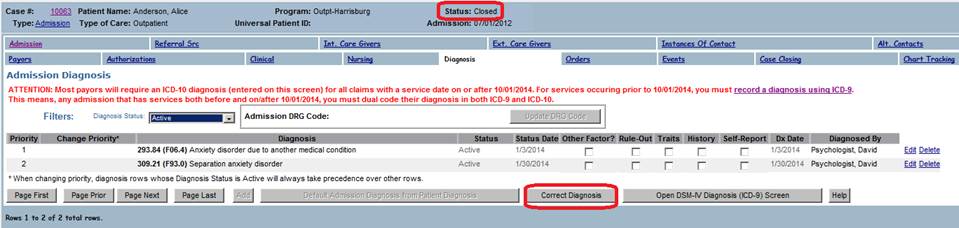
When you close an admission in Epitomax©, the Admission Diagnosis will become read only. This helps preserve the diagnosis so that future changes to the client diagnosis do not change the diagnosis on the closed admission. If necessary, you can make corrections using the “Correct Diagnosis” button on the Admission Diagnosis screen. If you reopen the admission, the Admission Diagnosis rows will be synchronized with the corresponding client diagnosis rows, and any corrections to the admission diagnosis will be lost.
(For Inpatient, Partial, and Intensive Outpatient types of care, an admission becomes closed when you check the “Case Closed” checkbox on the Case Closing tab of the admission. For all other Types of Care, the admission becomes closed when you save a discharge date.)
Converting from ICD-9 to ICD-10
To help you code your existing open admissions into ICD-10, we created a Convert Admission Diagnosis screen. This screen utilizes the ICD-9 to ICD-10 General Equivalence Mappings (GEMs) published by the CMS and the CDC. (For more information on GEMs, please visit http://www.cms.gov/Medicare/Coding/ICD10/downloads/GEMs-CrosswalksBasicFAQ.pdf.) To ensure a successful transition to ICD-10, you will want to provide training for your staff on the ICD-10 coding system. The GEMs are not a one to one mapping and your staff will need to become proficient in ICD-10 coding.
From the old ICD-9 / DSM-IV Diagnosis screen, click the “Convert to ICD-10” button.
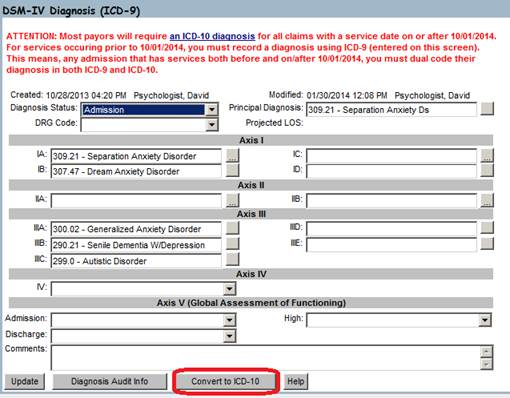
The conversion screen provides you with a list of ICD-10 codes using the GEM. If there are no available mappings in the GEM, you will need to manually code that diagnosis into ICD-10 later. Make your ICD-10 selections, make any changes to the other fields, and click “Update” to save your changes. If all codes were converted on this screen, then you are ready to submit claims for this client under ICD-10. Keep in mind that you need to keep both ICD-9 and ICD-10 codes up to date on both screens to make sure that your claims are correct for services rendered before and after 10/1/2015. Once you are done claiming and rebilling services prior to 10/1/2015 for a client, then you can stop keeping the ICD-9 diagnosis up to date.
Depending on how the codes are mapped in the GEM, there may be flags (Approx, No Map, Combo, Scenario, Choice List) added to the DSM-5 description. For more details on what the flags mean, please visit pages 8, 9, and 10 of the CMS GEM Crosswalk FAQ (https://www.cms.gov/Medicare/Coding/ICD10/downloads/GEMs-CrosswalksBasicFAQ.pdf). The GEM blog also contains helpful information (http://generalequivalencemappings.blogspot.com/).
To summarize the flags:
Approximate flag — attribute in a GEM that when turned on indicates that the entry is not considered equivalent
Choice list — in a combination entry, a list of one or more codes in the target system from which one code must be chosen to satisfy the equivalent meaning of a code in the source system
Combination flag — attribute in a GEM that when turned on indicates that more than one code in the target system is required to satisfy the full equivalent meaning of a code in the source system
No map flag — attribute in a GEM that when turned on indicates that a code in the source system is not linked to any code in the target system
Scenario — in a combination entry, a collection of codes from the target system containing the necessary codes that when combined as directed will satisfy the equivalent meaning of a code in the source system

Diagnosis Work List
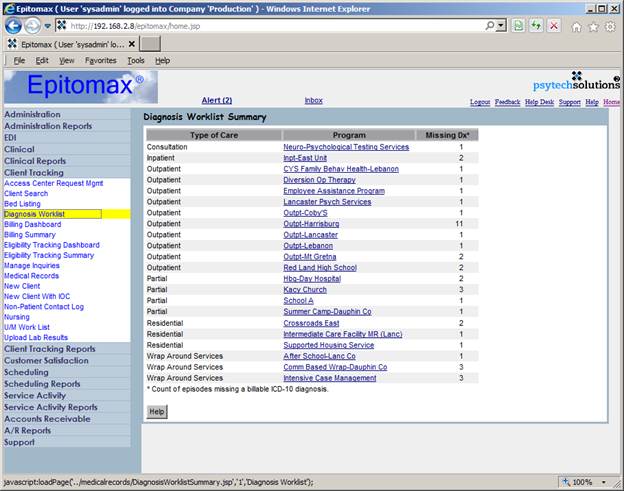
We created a Diagnosis Work List screen primarily to help you track coding your clients into ICD-10. From the summary view, you can see an overview of your organization and how many admissions still need ICD-10 coding. We have also provided a detail view with links to assist you in coding your clients.
Diagnosis Work List Summary
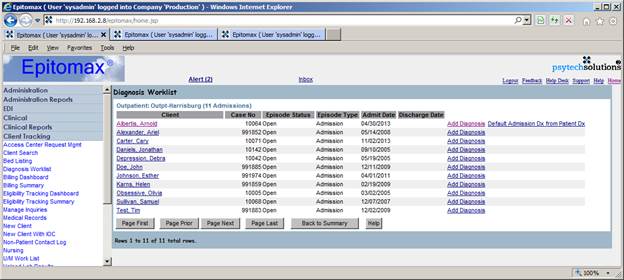
Diagnosis Work List Detail
Click on one of the program links on the summary view to pull up the diagnosis work list detail view. From here you can:
1. Click on the client name link to pull up the patient level diagnosis screen.
2. Click on the “Add Diagnosis” link to bring up the admission level diagnosis screen.
3. Click the “Default Admission Dx from Patient Dx” link to default the admission diagnosis from what is already entered as the patient diagnosis.
Once you are finished making changes, you can click the “Back to Summary” button to go back to the summary view.
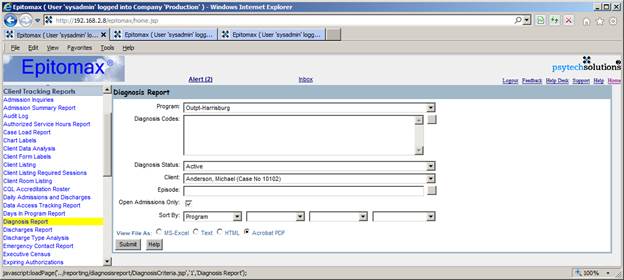
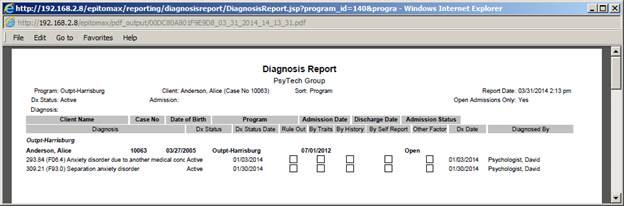
Diagnosis Report
There is a new Diagnosis Report that you can use to view ICD-10 diagnosis coding in your organization. We have exposed a number of different criteria options to allow you to approach your data from a number of different angles.
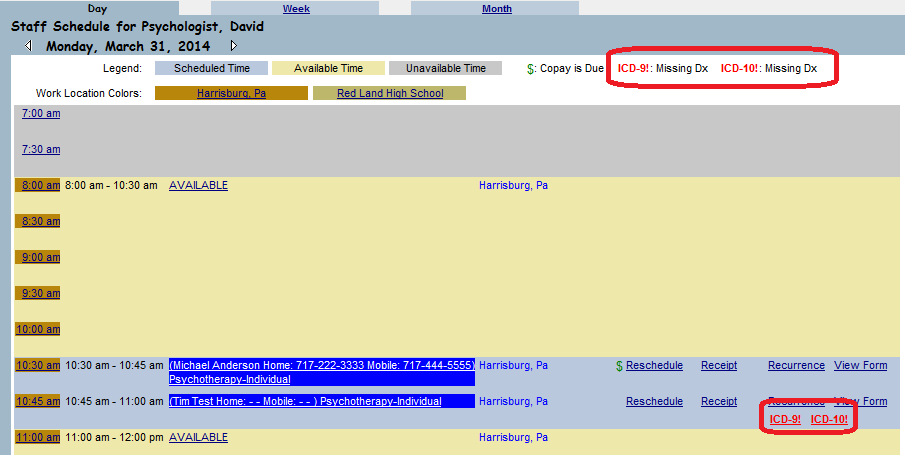
Staff Calendar Diagnosis Indicators
There are 2 new indicators on the staff schedule day view to help your staff with Diagnosis coding. Both of these indicators are links that open the appropriate diagnosis screen.
1. ICD-9!: Admission has not been coded in ICD-9.
2. ICD-10!: Admission has not been coded in ICD-10.
Billing Support for ICD-10
Epitomax© now supports submitting claims with ICD-10 diagnosis coding. Claims for services rendered prior to 10/1/15 will be generated with the client’s ICD-9 coding, and claims for services rendered on or after 10/1/15 will be generated with the client’s ICD-10 coding.
1. The billing error report that runs during charge generation and claim generation will check for valid diagnoses in the appropriate ICD versions depending on the date of service being claimed.
2. The CMS 1500 claim form has been updated to version 02/2012 which supports ICD versioning by date of service.
3. The UB-04 claim form already handles ICD versioning and the Epitomax© coding for this form has been updated to print the correct diagnosis depending on the date of service.
4. The 5010 837 electronic format already handles ICD versioning and the Epitomax© coding for this format has been updated to print the correct diagnosis depending on the date of service.
5.
Future Enhancements
PsyTech Solutions has identified enhancements to your clinical forms to not only support ICD-10 diagnosis coding but also improve clinical documentation workflows related to diagnosis coding. Our dedicated forms team will partner with you to make this a smooth transition.